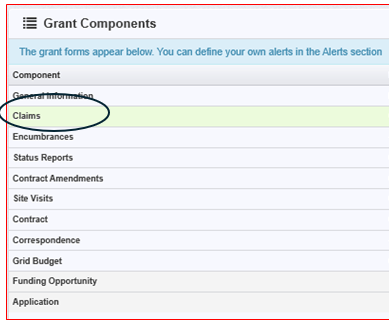
Once you have selected the grant, you will be directed to the “Grant Components”.
Select “Claims” from the list of Grant Components
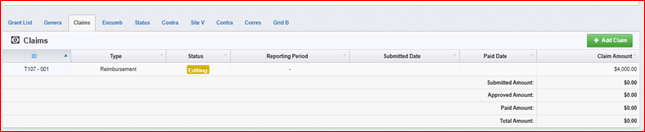
Unless instructed otherwise, a claim for the required reporting period should be displayed for you to select and complete the report. Do not select the green Add Claim button unless requested to by your DOJ contacts.
The start date and end date shown are the reporting period for which you are reporting costs. Notice the due date of the report is displayed. To complete the report, select the Report ID.

Select “Add Claim” on the button located on the right side of your screen only if requested to do so. A claim for the appropriate reporting period should already exist, unless your program area instructs you to add the claim yourself.
You will then be directed to the “General Information-Claim”.
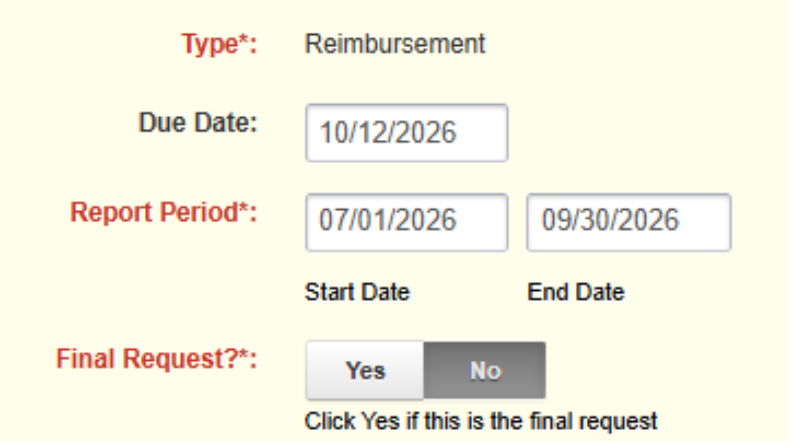
Complete the fields on the form, then select “Save Form”: The Reporting Period and Due date should already be prefilled unless you selected start a new claim in the prior step.
Select Yes for Final Request only if this is the last claim that you will submit. The system defaults to No.
Note: If you log out of the system at this point or any future point, you will select the existing claim until it has been submitted.
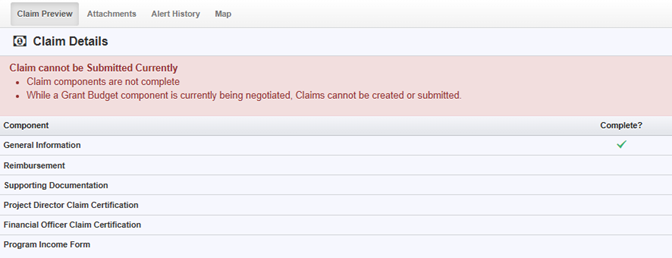
Once the “General Information” has been completed, you will be returned to the “Claim Components”. This is a complete listing of all claim forms that are to be completed to submit the claim.
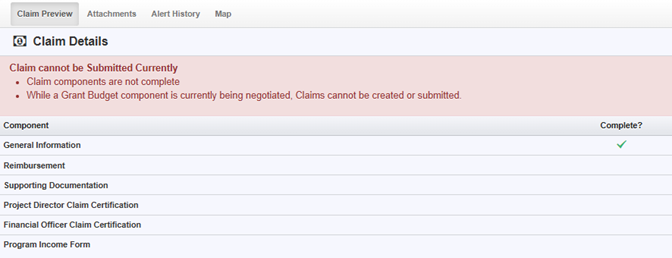
You can now begin completing the claim forms designated for your grant.
Note: All forms can be edited and saved as often as necessary, but the system will require that ALL fields marked as “Required” MUST have entries and EVERY form must be “Marked as Complete” to submit. You will receive a pop-up message notifying you of this if you try to submit without completing these steps.
The “Mark as Complete” button appears in orange on the right side of the screen.

You will continue to complete each form in the “Claim Component” listing. Please include supporting documentation if your program requires it.
Note: Most forms are editable by selecting “Edit” at the top part of the section. However, multi-list sections are editable by selecting “Add” on the section.
All information must be saved by selecting “Save” on the forms. If you do not select “Save” and you back out of the form or section of the form, your information will be lost.
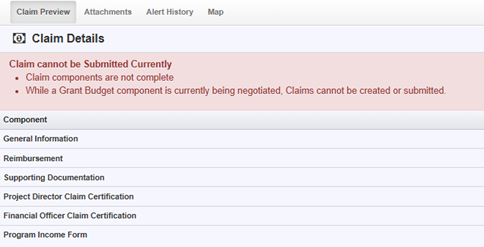
The Project Director and Financial Officer are certifying to the accuracy of the Reimbursement request and should each complete the certification separately. Each will need to be Added as a Contact to the grant as shown in “Applicant Instructions for applying for funding in WebGrants” and each must have their own login.
Once you have filled out all required components and marked each form complete, you will select “Submit Claim”. The claim will be reviewed and reimbursement processed unless you hear otherwise from a Wisconsin DOJ representative.