Access the WebGrants System
- Go to the
WebGrants login page
- Click on the “Subgrantee Login-MyWisconsin ID Access to Single Sign On Tool” button.
- Enter your MyWisconsin ID User ID.
- Enter your MyWisconsin ID Password.
- Click on “Sign In”.
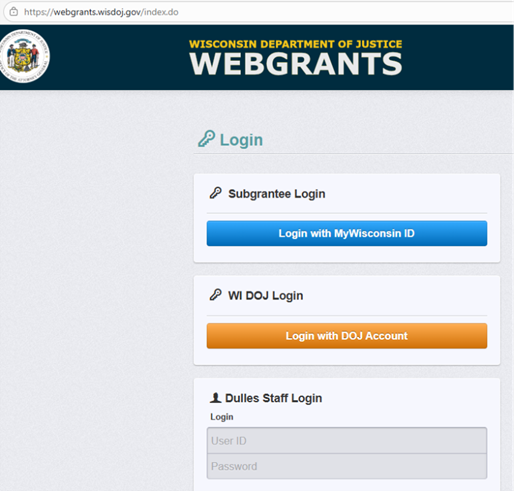
Note: Use the WebGrants Menu, not the Browser Menu. WebGrants is compatible with many different browsers; please feel free to use the browser of your choice. Read the instructions on the screen for navigating in the system.
How to Submit a Modification
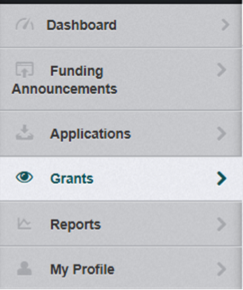
From the Side Menu: Click on “Grants”
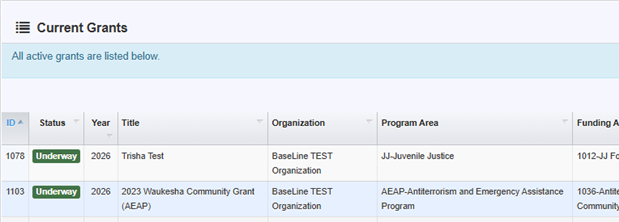
Select the grant you would like to access in the “Current Grants” listing.
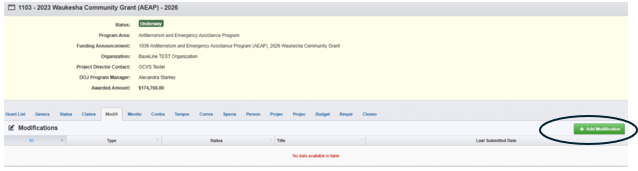
Once you have selected the grant, you will be directed to the “Grant Components”.
Select "Modifications” from the list of Grant Components.
Click “Add Modification” on the button located on the right side of your screen.
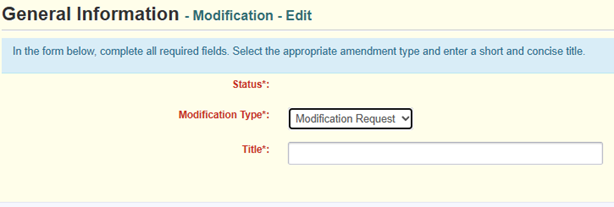
Choose the “Modification Type”
Enter “Title”
When complete, click “Save Form”
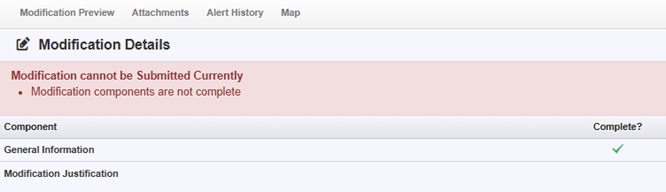
Select “Modification Justification”
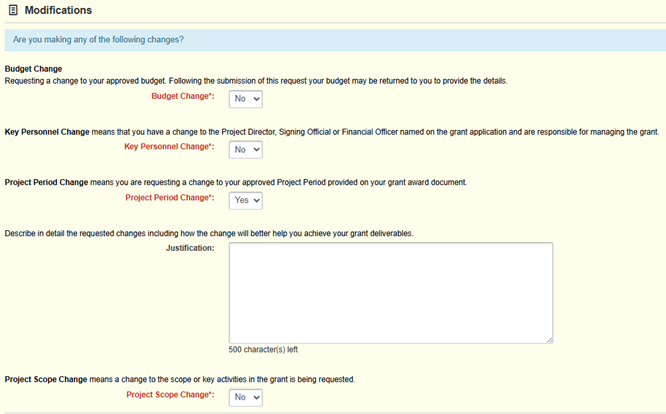
Select the type of Modification that you would like to submit by choosing the drop-down and indicate “YES” to enable a Justification box for that type of Modification. You can select more than one type, if necessary. You must select “NO” in the dropdown for the modification types that you are not requesting.
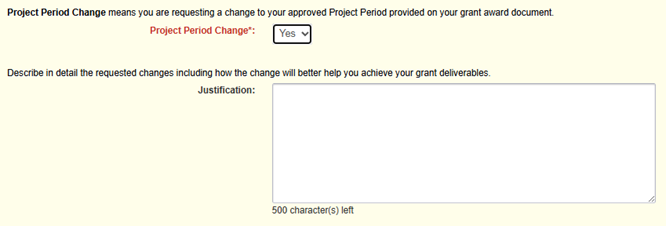
When you select “YES” a justification box will appear. For each modification type that you selected YES, enter a clear justification explaining the change that you are requesting in your approved grant to include the reason for the requested change. Then, click “Save Form” when ready and “Mark as Complete”.
Select “Submit Modification” when you are ready to submit. Other menu options are withdraw, copy or preview modification.

You will hear back from Wisconsin DOJ once approved or otherwise.