Access the WebGrants System
- Go to the
WebGrants login page
- Click on the “Subgrantee Login-MyWisconsin ID Access to Single Sign On Tool” button.
- Enter your MyWisconsin ID User ID.
- Enter your MyWisconsin ID Password.
- Click on
“Sign In”.
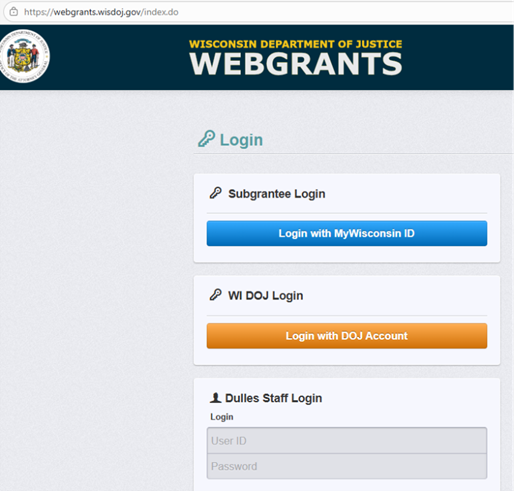
Note: Use the WebGrants Menu, not the Browser Menu. WebGrants is compatible with many different browsers; please feel free to use the browser of your choice. Read the instructions on the screen for navigating in the system.
How to Submit a Status Report
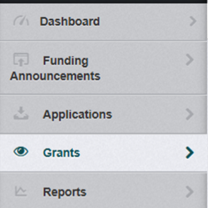
From the Side Menu: Click on “Grants”
Select the grant you would like to access in the “Current Grants” listing.
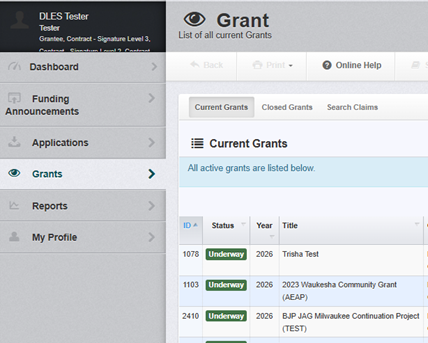
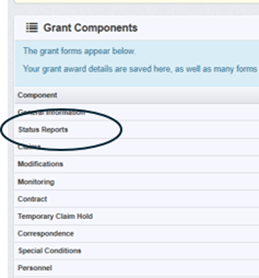
Once you have selected the grant, you will be directed to the “Grant Components”.
Select “Status Reports” from the list of Grant Components.
Click on “Add Status Report”

Choose the “Sub Type” to select the report type.
Enter a “Report Title”.
Enter “Report Dates”: Start Date and End Date.
When complete, click “Save Form”.
Click on the status report form(s) listed under “Components”.
Complete each form and “Mark as Complete”.
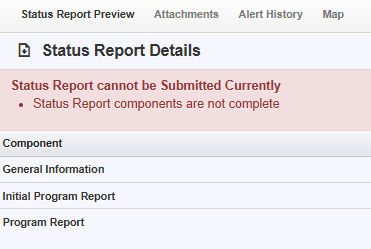
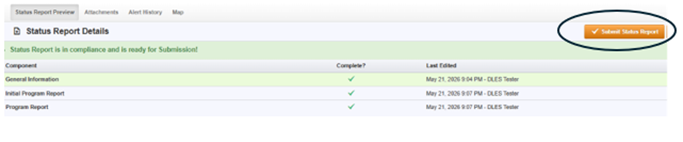
When the status report is ready for submission and all forms are marked complete, click on
“Submit Status Report”.
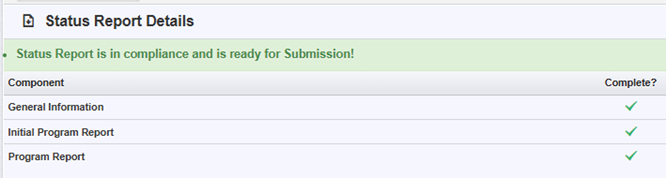
Image with “Submit Status Report” circled.