Access the WebGrants System
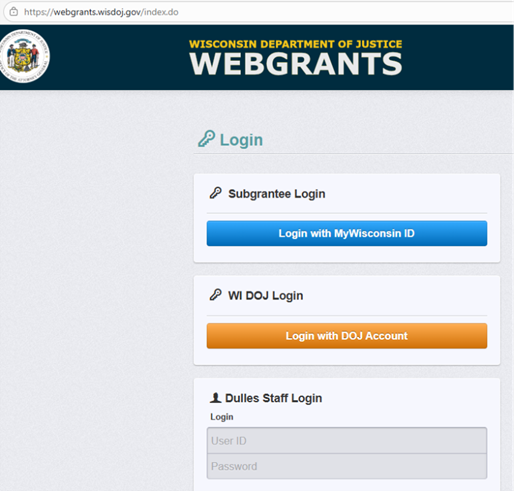
- Go to the
WebGrants login page
- Click on the “Subgrantee Login-MyWisconsin ID Access to Single Sign On Tool” button.
- Enter your MyWisconsin ID User ID.
- Enter your MyWisconsin ID Password.
- Click on
“Sign In”.
Note: Use the WebGrants Menu, not the Browser Menu. WebGrants is compatible with many different browsers; please feel free to use the browser of your choice. Read the instructions on the screen for navigating in the system.
Signing a Contract
On the Main Menu, click on “Dashboard”. The “Contract Signature” task should show up under the Contract Signature section on the dashboard.
Note: Prior to signing the Project Director and Signing Official should review all terms, conditions and assurances associated with the grant contract language.

Under the “Contract Signature” section of the dashboard click on the contract needing signed. You will see the Signatures button. Click on the “Signatures” button.
The Project Director and Signing Official (Highest Elected Official, Board Chair, or Executive Director) will both sign the subgrant award also known as the contract. The Project Director should sign first.
Under “Signatures” the Project Director is the first person to sign and will sign electronically.
Project Director Steps to sign the contract:
- Go to the Contract Signatures section on the Dashboard.
- Project Director will sign first then will be able to click the “Notify Next” button when it is time to forward the contract to the Signing Official.
- In the Status box select “Signed”.
- Type your name as Project Director of the project.
- Enter the date under “Typed Date”.
- Add any comments. (optional)
- Under “Notify Next” add the name of the Signing Official. This person was listed on the original grant application and is defined as the Highest Elected Official, Board Chair, or Executive Director. The Signing Official must have a login set up in WebGrants for their name to appear.
- Click on “Save Signature”.

An automated email will be sent from the WebGrants System to the Signing Official notifying them that a contract is waiting for their signature. The Signing Official must have a login to the WI DOJ WebGrants system to sign the subgrant award/contract. For information regarding WebGrants access please visit the WebGrants information page.
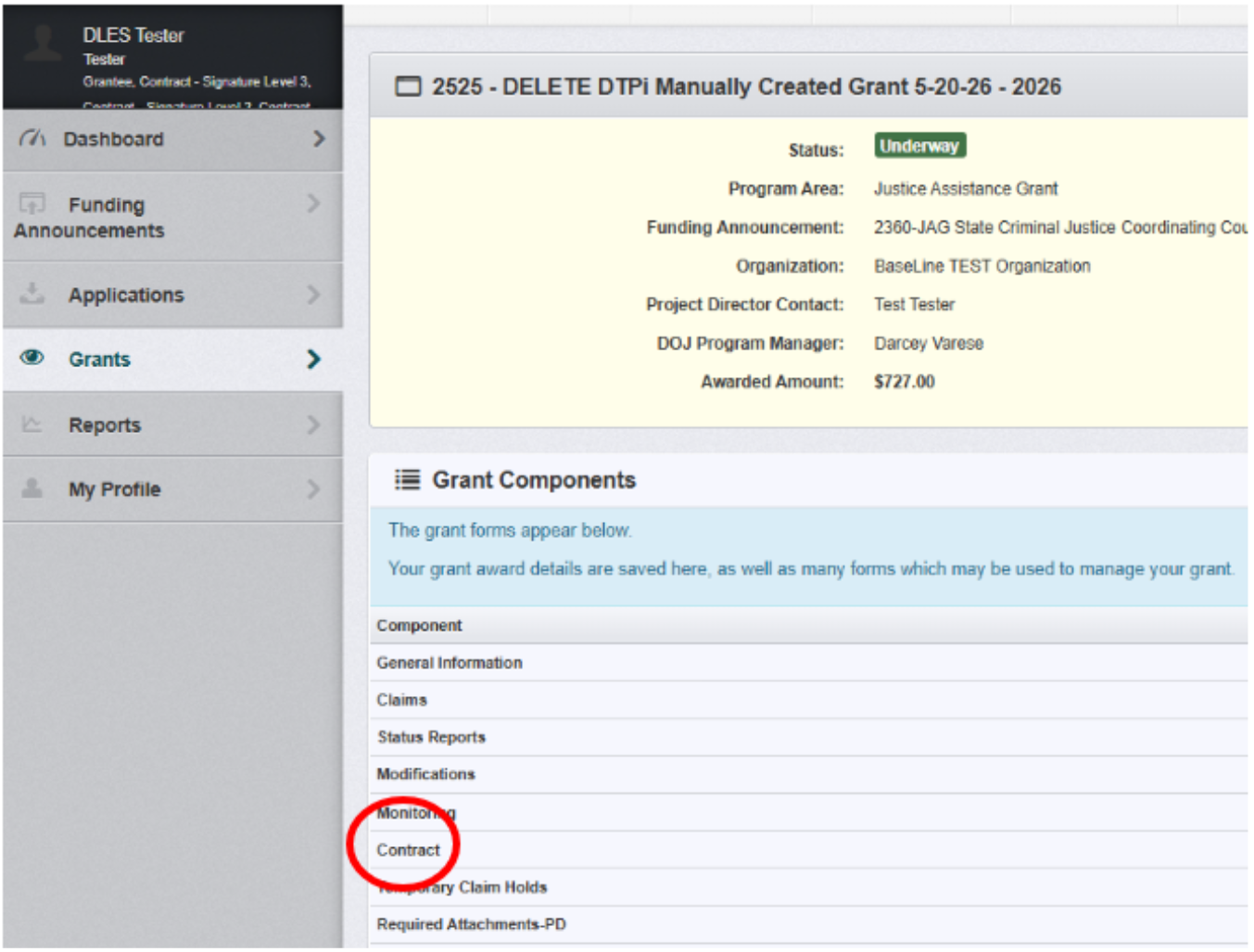
The fully executed contract will be available for viewing within the WebGrants System by going to the “Grants” menu and clicking on the Grant Component titled “Contract”.